
Proxies for gamers: how to reduce ping and protect yourself from DDoS attacks
13.01.2026
You join a match and play smoothly—right up until everything starts falling apart: arrows don’t hit, enemy skills and actions trigger with delay. Constant connection drops, ranking losses, and zero support from your ISP. Or you’re streaming, and viewers see lag and video artifacts. This is every gamer’s pain. When you lose not because of skill, but because of the network.
Main Problems Gamers Face
Network issues take the enjoyment out of gaming and slow skill progression, increase the risk of losing important matches, and complicate streaming and interaction with the audience. Finding the cause and dealing with technical support drains time and nerves.
High Ping (Latency)
This is the delay between a player’s action and the server’s response, measured in milliseconds. In competitive games, a difference of 20–50 ms often decides the outcome of a fight. High ping manifests as a delay between pressing a button and seeing the result in-game, “dead” shots, and delayed character movement. Common ping benchmarks are familiar: up to 50 ms — excellent, 50–100 ms — acceptable, over 150 ms — serious problems in competitive matches. The causes of high ping are usually related to server distance, inefficient routing by the ISP, or congested network nodes.
Lag, Jitter, and Packet Loss
These affect control predictability even if the average ping seems fine.
- Lag refers to interruptions and freezes in gameplay.
- Jitter is fluctuation in latency when ping is unstable.
- Packet loss means some data never reaches the server and must be retransmitted.
Causes include poor Wi-Fi or router quality, home network congestion, interference, or instability at the ISP level and backbone nodes.
DDoS Attacks
These involve the deliberate sending of massive traffic volumes or specially crafted packets to a player’s IP address or a server to overload the connection and break the session. This is especially dangerous for esports teams, streamers, and those who frequently participate in public matches. Attacks can knock players out of tournaments, disrupt streams, and lead to rating losses.
Signs of a DDoS attack include sudden and prolonged loss of connection to the game, ping spikes into the thousands of milliseconds, inability to connect to voice services, and abnormally high inbound connection activity on the router.
Why a Stable Connection Is Critical for Gamers
A stable connection determines how readable and predictable gameplay feels. In competitive matches, every delay and every lost packet can cost a win: hits are registered on the server based on packet arrival time, not the visual frame on the screen. With high and unstable latency (ping), strong jitter, or packet loss, controls become unpredictable—characters “teleport,” shots don’t register, and voice chat drops. For streamers and teams, this also means reputational and organizational damage: stream interruptions, tournament disqualifications, and rating drops.
What Proxies Are and How They Can Help
Proxies are intermediary servers through which network traffic passes between a player’s device and the game server. Instead of connecting directly to the server, the game or client sends data to the proxy, which then forwards it onward.
From the user’s perspective, this provides:
-
Route optimization. Some ISPs default to inefficient routes to game servers. A proxy with strong connectivity can choose a more direct path, reducing the number of hops and lowering latency or jitter.
-
Reduced jitter and packet loss. Thanks to stable channels and proper routing, proxies offer more predictable bandwidth, reducing latency spikes and the likelihood of packet loss.
-
Support for required protocols. Many games use UDP, and standard HTTP proxies are useless in this case. SOCKS5 or specialized gaming proxies/gaming VPNs are effective because they forward UDP packets and support the low-level network requirements of games.
How Proxies Help Reduce Ping
Good proxy providers often have better peering arrangements and optimized routes to gaming data centers. If the provider has direct and fast connections to the target game host, the number of intermediate nodes and transit time decrease, resulting in lower ping.
DDoS Protection via Proxies
A proxy provides a first layer of DDoS protection primarily by hiding the player’s or game server’s real public IP address behind its own and distributing incoming traffic across its infrastructure. When an attack targets the hidden IP, it hits the proxy provider’s network, where it can be automatically filtered or scrubbed before malicious packets reach the end client.
When Proxies Are Truly Useful
Online Games With Servers in Other Regions
If players are far from game data centers, the ISP’s direct route often passes through many nodes, resulting in high ping or instability. In such cases, a high-quality gaming proxy with an exit point closer to the game server and strong peering agreements can solve the problem.
Esports Players
Competitive matches demand minimal and stable latency, predictable packet delivery, and fast support response during incidents. Professional teams benefit from paid solutions with guaranteed bandwidth and SLA, as well as the ability to select routes or dedicated exit points.
Streamers Vulnerable to Attacks
Streamers are frequent DDoS targets aiming to knock them offline. Proxies route traffic through the provider’s infrastructure, where filtering and scrubbing can be enabled. For streaming, solutions with network-level anti-DDoS and fast exit-point switching are preferable.
Setting Up a Proxy for Gaming
Basic Connection Schemes
Windows: Automatic Setup
This is the simplest option and suits most users. You can use special programs that scan the network and determine proxy parameters. However, this method isn’t always reliable and may result in incorrect configuration.
Instructions:
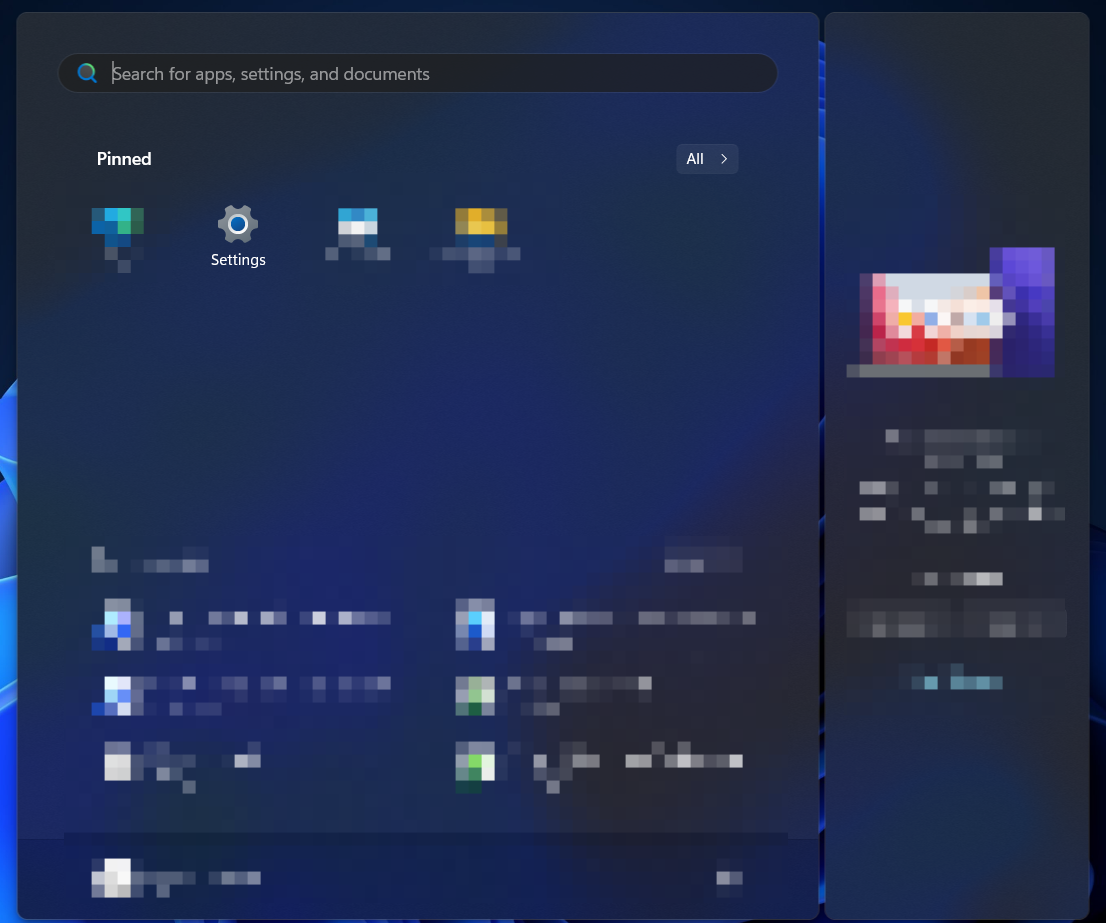
Click the “Start” button in the lower left corner of the screen.
 In the menu that opens, select “Settings.”
 In the “Settings” window, select “Network & Internet.”
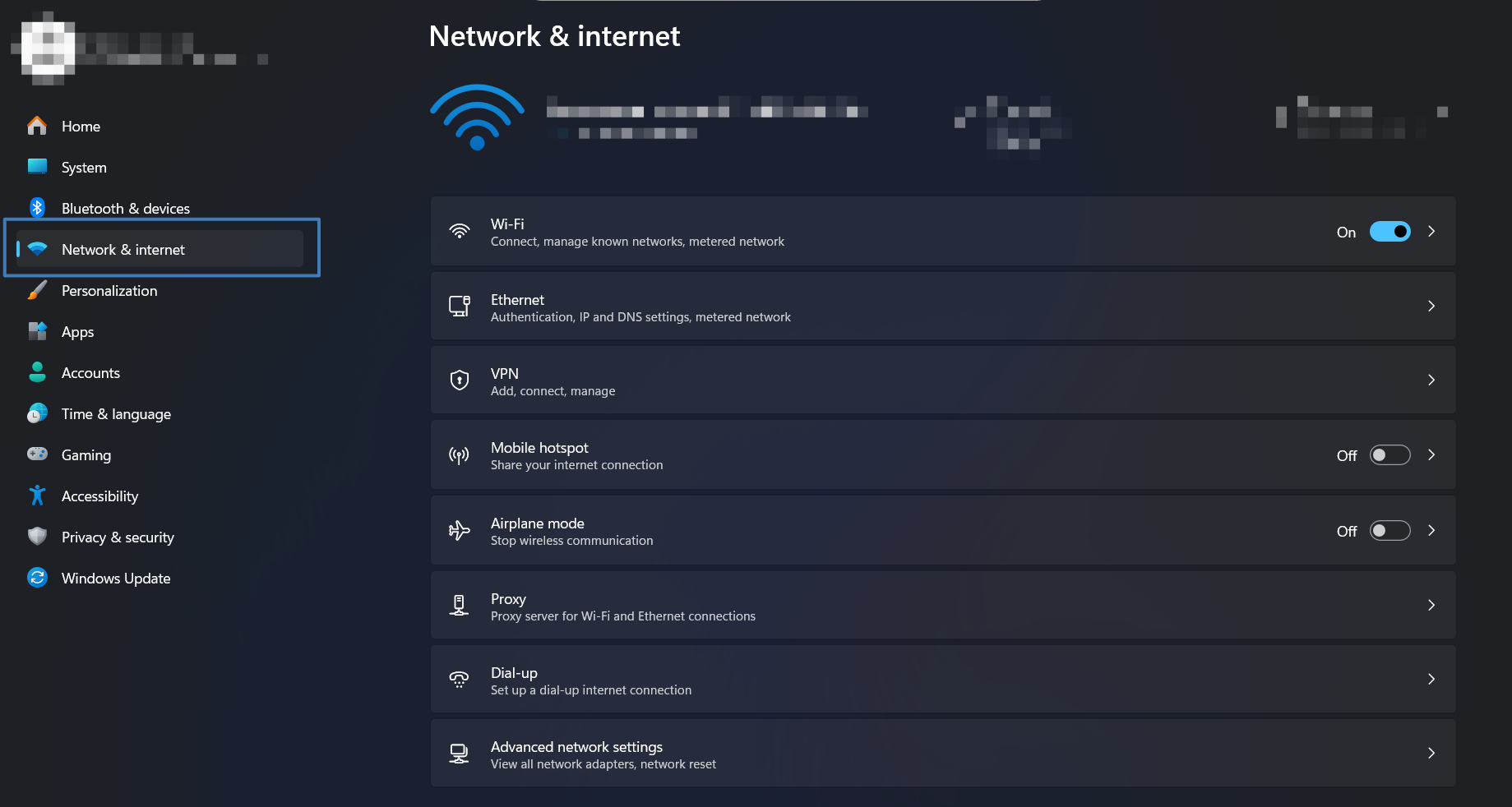 In the “Network & Internet” section, click “Proxy.”
In the “Proxy” section, enable “Automatically detect settings.”
In the “Network & Internet” section, click “Proxy.”
In the “Proxy” section, enable “Automatically detect settings.”
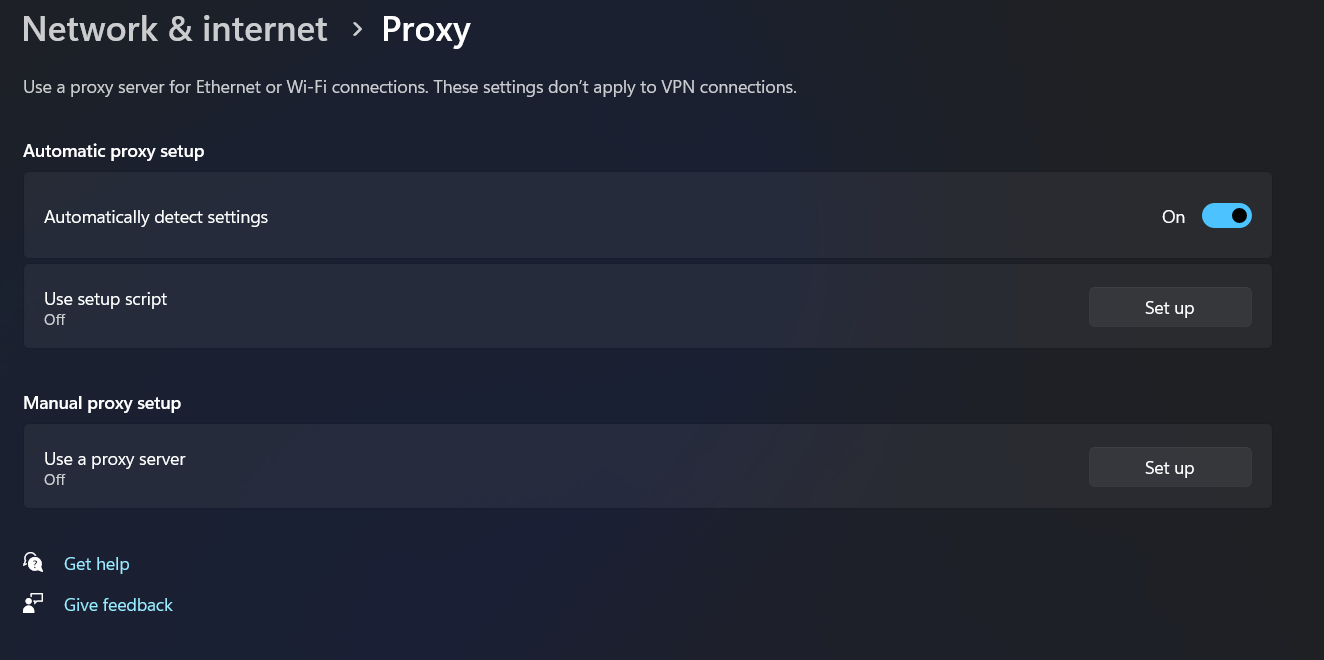 After enabling this option, your computer will automatically search for and configure a proxy server.
Manual Setup
If you want full control over the configuration process, manual mode is your choice. Open the Windows 11 Control Panel, select “Network & Internet,” then go to “Proxy” and specify the proxy server’s IP address and port.
Instructions:
Click the “Start” button in the lower left corner of the screen.
In the menu that opens, select “Settings.”
In the “Settings” window, select “Network & Internet.”
In the “Network & Internet” section, click “Proxy.”
In the “Manual proxy setup” section, next to “Use a proxy server,” click “Set up.”
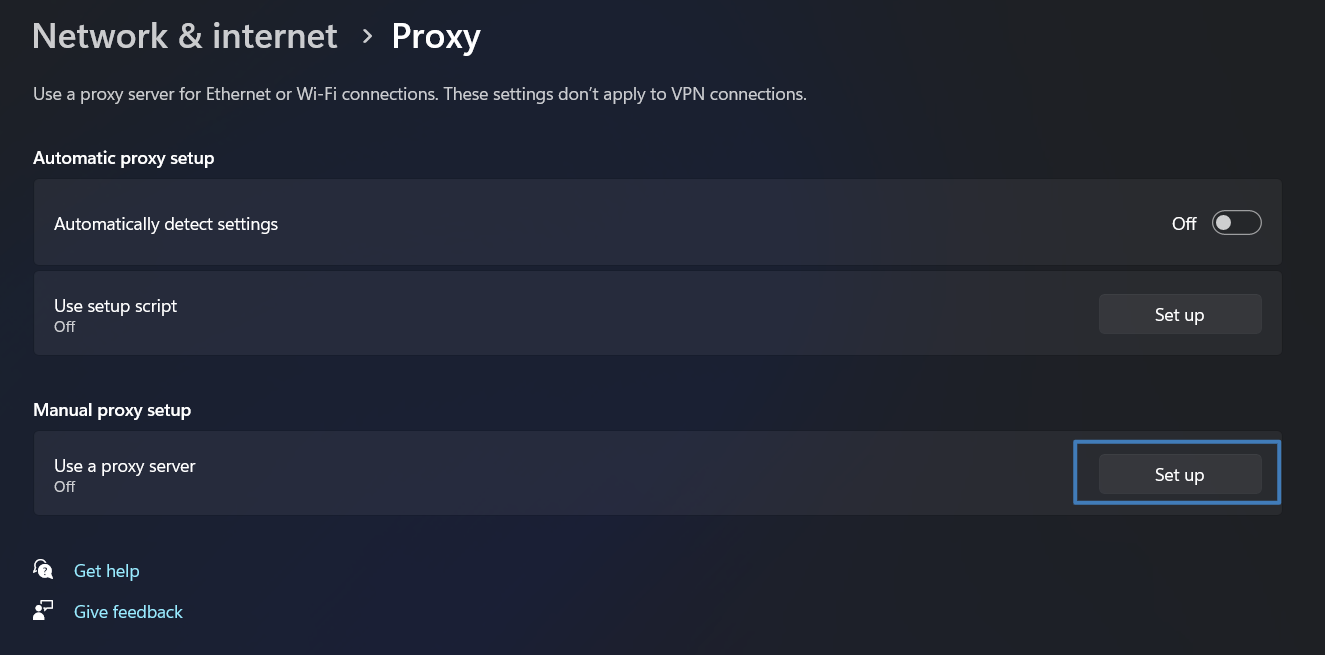 In the “Edit proxy server” dialog:
- Enable “Use a proxy server.”
- Enter the proxy server IP address and port in the appropriate fields.
- If you don’t want to use the proxy for certain websites, add their address endings to the exclusion list.
- Check or uncheck “Don’t use the proxy server for local (intranet) addresses” depending on your organization’s requirements.
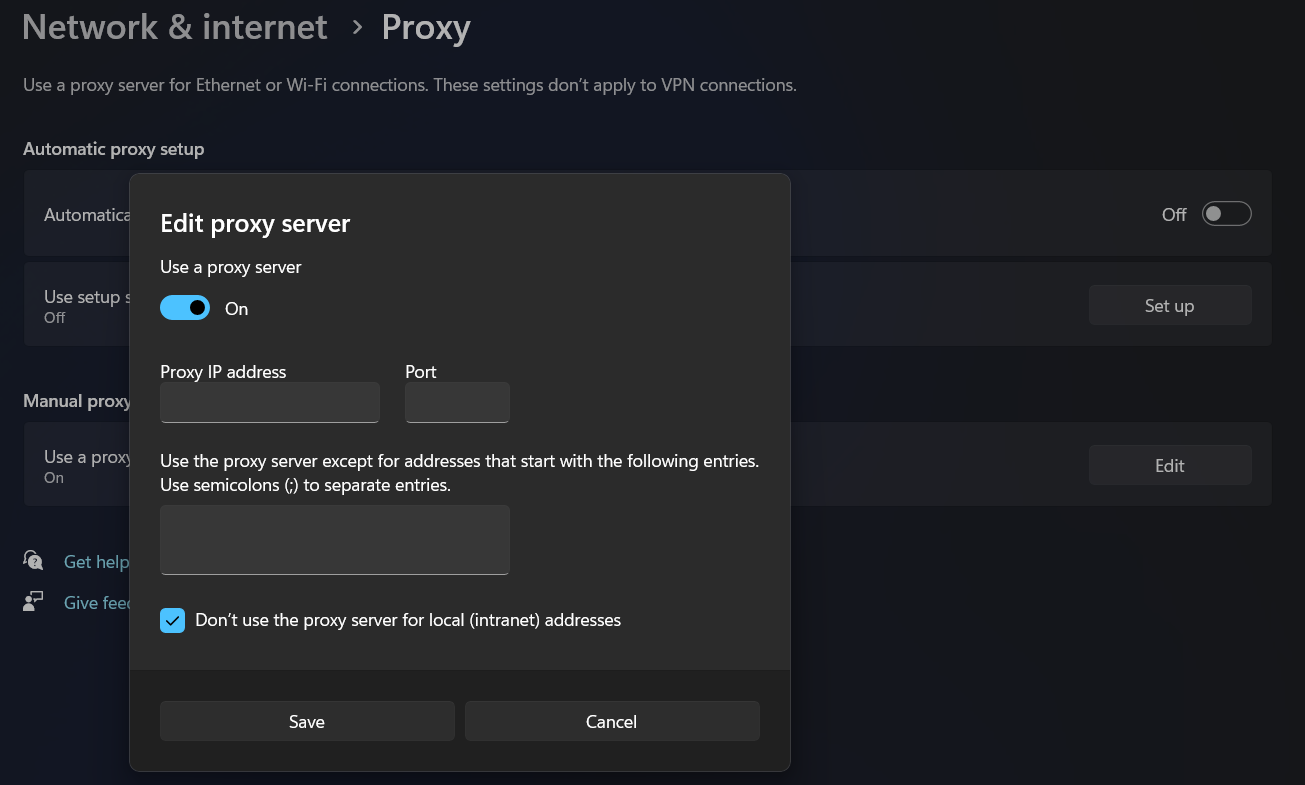
Click “Save” to complete the proxy setup.
macOS
- Open “System Settings” on your Mac.
- Select “Network.”
- Choose the connection you want to configure (e.g., Wi-Fi or Ethernet).
- Click “Advanced” and go to the “Proxies” tab.
- Check the box next to the proxy type you want to use and enter the required settings.
Possible Pitfalls
Using proxies for gaming is generally effective, but it’s important to understand potential nuances. This isn’t a reason to abandon the idea—just something to be prepared for. Most issues are easily mitigated by choosing a quality provider and configuring things correctly.
-
Sometimes a proxy can add latency if the server is poorly located or the provider has weak links. With good gaming proxies, this is rare. Their servers are placed closer to game data centers and routes are optimized, so in most cases ping decreases or becomes more stable.
-
Not all proxy types are suitable for gaming—standard HTTP proxies don’t forward UDP, which many games rely on. Reliable gaming solutions support UDP, ensuring compatibility.
Even with proper configuration, minor issues may occasionally occur: sudden ping spikes, match disconnects, or launcher connection failures. The good news is that most problems are easy to fix if you know what to look for.
-
High ping after midnight Possible cause: server overloaded by nighttime players. How to fix: switch to a less congested exit point; configure auto-switching at a predefined time.
-
“Proxy detected” login error Possible cause: IP address is on the game service’s ban list. How to fix: request a new IP from the provider or change servers, clear cookies/cache, and avoid repeated login attempts.
-
Packet loss every 60 seconds Possible cause: Wi-Fi interference from household devices (lights, microwaves). How to fix: switch to 5 GHz or connect via Ethernet; change the Wi-Fi channel to a less congested one (channel 40+ on 5 GHz).
-
Disconnect during map loading Possible cause: IP change during the session or tunnel drop. How to fix: enable “fixed session” mode or set session duration to 2–3 hours; use a stable exit point.
-
Launcher update failure Possible cause: selected protocol or proxy doesn’t properly handle large files/downloads. How to fix: temporarily switch to another protocol/proxy type (e.g., from HTTPS to SOCKS5) or disable the proxy during updates.
-
Console won’t connect to the proxy Possible cause: incorrect port or proxy doesn’t support required authentication. How to fix: verify and correctly set the port, enable or disable “Authentication required” according to provider settings, and request console-specific instructions if needed.
-
Rapid battery drain on mobile when using a proxy Possible cause: high CPU load due to encryption. How to fix: reduce encryption level, use a less resource-intensive protocol, or temporarily switch to HTTPS/low-overhead mode on trusted networks.
How to Choose the Right Proxy for Gaming
-
RTT to the proxy (time to first hop). This is the time from the device to the proxy server itself. The lower, the better—target under 30 ms. Measured via ping or any latency tester.
-
RTT from proxy to game server. After reaching the proxy, traffic still has to reach the game host. Ideally, the total RTT (device→proxy→game server) should be minimal.
-
Jitter (latency instability). For comfortable real-time gameplay, jitter should be very low—around <4 ms. Large latency fluctuations cause “rubber-banding” and unpredictable controls.
-
Packet loss. Even small loss percentages noticeably degrade gameplay. For long sessions, <0.2% loss is acceptable. Test during stress sessions or long ping/mtr runs.
-
Protocol and UDP support. Most games use UDP. Proxies must correctly forward UDP packets. Standard HTTP proxies won’t work.
-
IP rotation speed. In case of bans or when an address change is needed, fast IP rotation is critical. A good target is <20 seconds, ideally with manual or API-based switching.
-
Dashboard and API reliability. A user-friendly interface and a working API are essential for quick exit-point switching during gameplay. Dashboard downtime can be just as frustrating as network lag.
When choosing gaming proxies, take a look at Belurk. Belurk’s high-quality proxies offer optimized routing to gaming data centers, UDP support, DDoS protection mechanisms, a convenient dashboard, and fast IP switching via interface or API.
Belurk is a reliable choice for gamers. Our proxies won’t let you down mid-match. With us, you can focus on the game—not the connection. With Belurk, you get stable and fast internet for gaming. Fewer lags, less packet loss, reliable protection, and easy setup.
Try belurk proxy right now
Buy proxies at competitive prices
Buy a proxy