

How to use a proxy to access web resources
23.04.2026
Sometimes you need to access a website that is not directly reachable. The reasons may vary, but there is a solution. A proxy server solves these problems, but for it to work correctly, you need not only to choose it but also to configure it properly.
How a proxy server works
A proxy is an intermediate node between your device and the internet. When you enable a proxy, your browser or program stops accessing websites directly. Instead, the request is sent to the proxy server, which forwards it to the target website, receives the response, and sends it back to you.
The website sees the IP address of the proxy, not your real one. To the resource, you appear as a user from the location where the proxy server is physically located.
When and why a proxy might be useful
- Access to content restricted by region. Some websites show different content depending on the visitor's country. A proxy with an IP from the desired country allows you to see information as local users do.
- Masking your real IP address. During normal browsing, websites log your IP. A proxy hides this identifier, reducing the amount of data resources can collect about you.
- Working on public networks. In cafes, airports, coworking spaces, internet traffic can be intercepted. A proxy with encryption (HTTPS or SOCKS5) adds an extra layer of protection.
- Bypassing restrictions at work or school. Network administrators often block access to certain categories of websites. A proxy allows you to bypass these restrictions, provided it does not violate local rules.
Main types of proxies
- HTTP/HTTPS proxies. Work only with web traffic. Suitable for browsers and any programs that access websites. The HTTPS version encrypts data between you and the proxy.
- SOCKS5 proxy. A universal protocol that supports any type of traffic (web, email, torrents, games, calls). It does not analyze content, simply forwards packets. Suitable for applications that do not work with HTTP proxies.
- Transparent, anonymous, and elite proxies. They differ in their level of anonymity. Transparent proxies do not hide the fact that a proxy is being used. Anonymous proxies hide your IP but tell the website you are using an intermediary. Elite (high-anonymity) proxies leave no traces.
How to choose a suitable proxy
When choosing, several parameters should be considered.
- Geolocation. The IP must match the country you want to "appear" from on the internet.
- Speed and stability. The proxy should not slow down page loading or drop the connection.
- Protocol type. For a browser, HTTPS is suitable. For applications that work with other protocols, SOCKS5 is needed.
- Anonymity level. If it is important to hide the fact of using a proxy, choose elite proxies.
- Service reputation. Not all providers are equally reliable. Public free proxies are often overloaded, unstable, and potentially dangerous (they may log traffic). It is better to use trusted paid services that guarantee clean IPs and security.
Belurk offers proxies with different types and levels of anonymity. The catalog includes HTTP, HTTPS, and SOCKS5, the ability to choose geolocation, and optimal speed. All addresses are checked before sale. Technical support helps with configuration and resolves issues if something goes wrong.
Setting up a proxy in browsers
Yandex Browser
Yandex Browser does not have a separate proxy setting — it uses the system parameters of your computer.
-
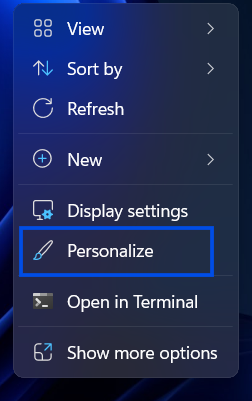
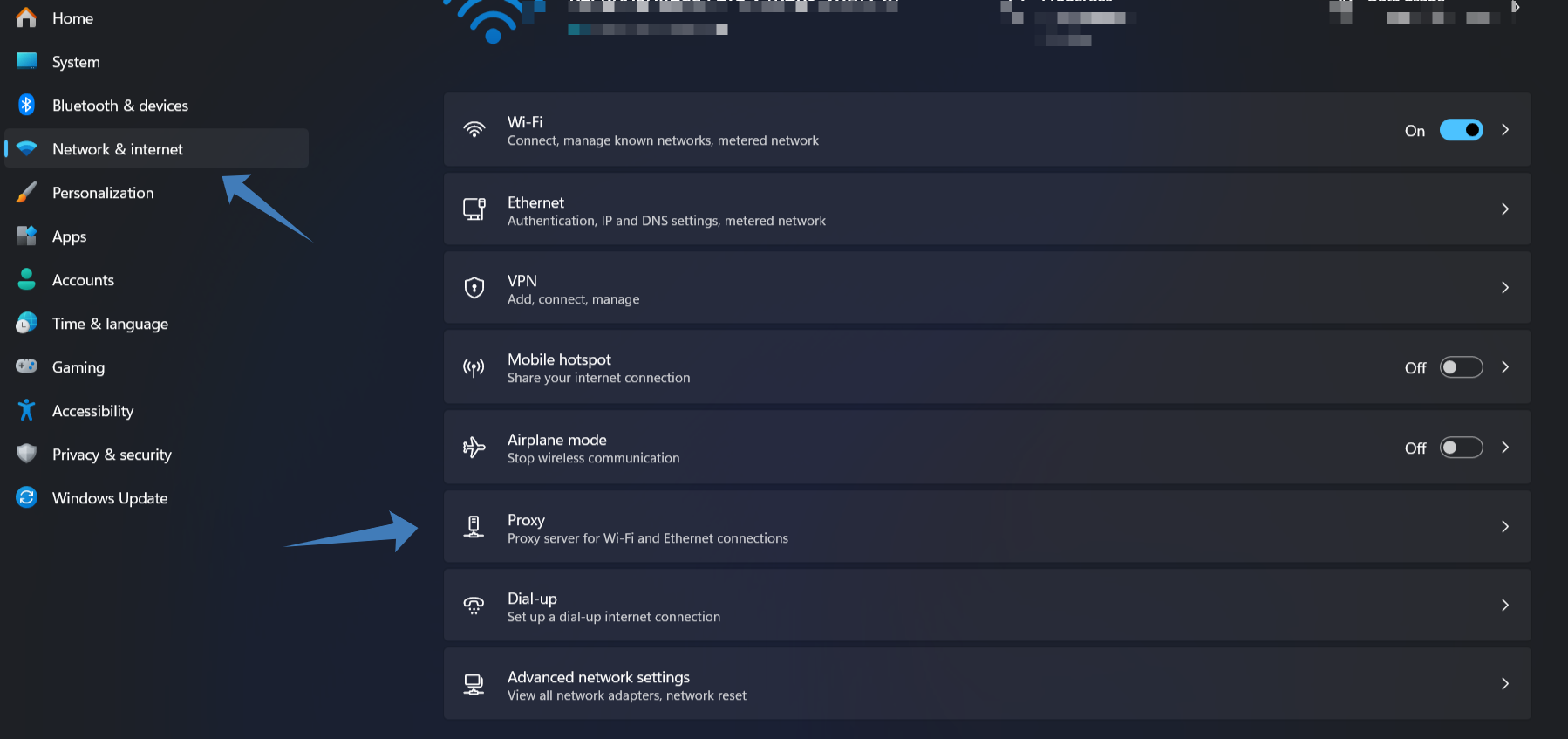
Open Windows Settings - "Personalization"
-
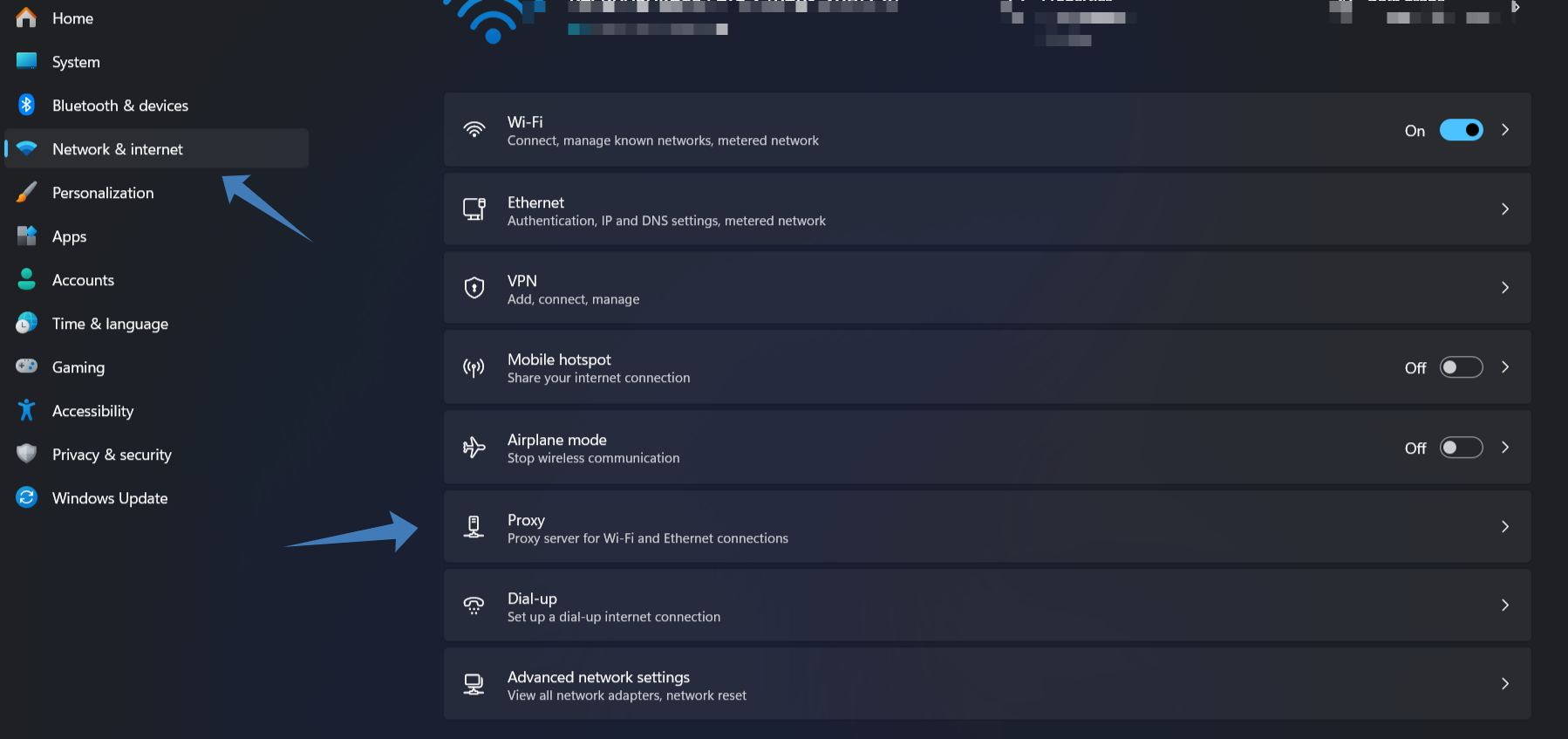
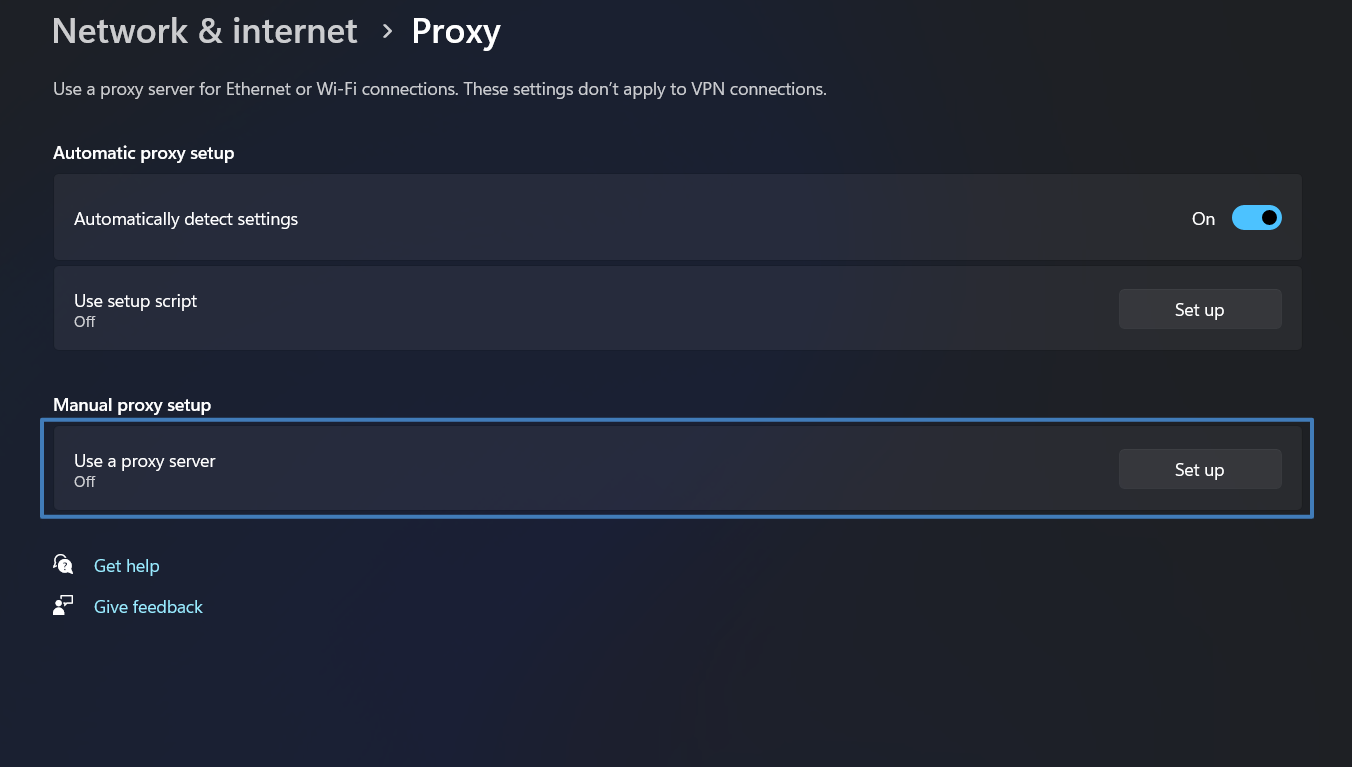
Go to Network & Internet → Proxy
-
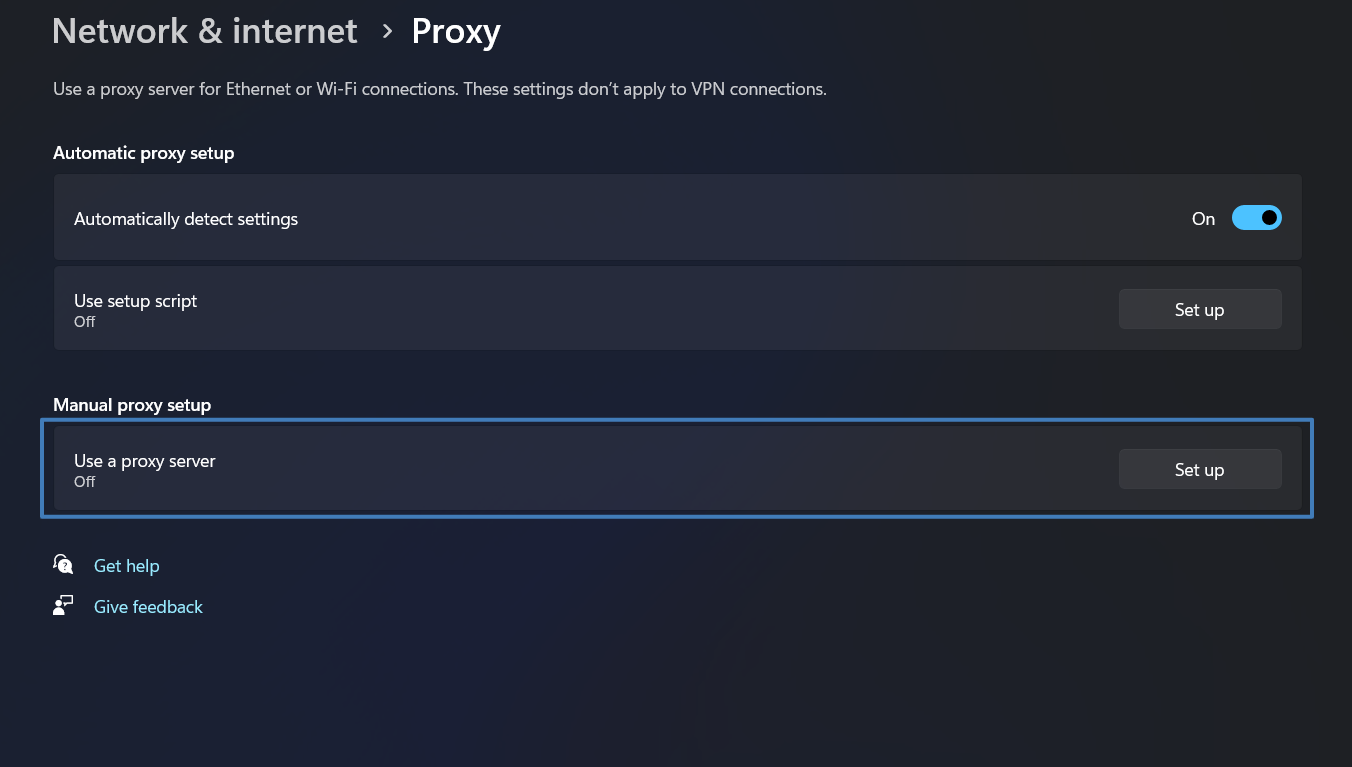
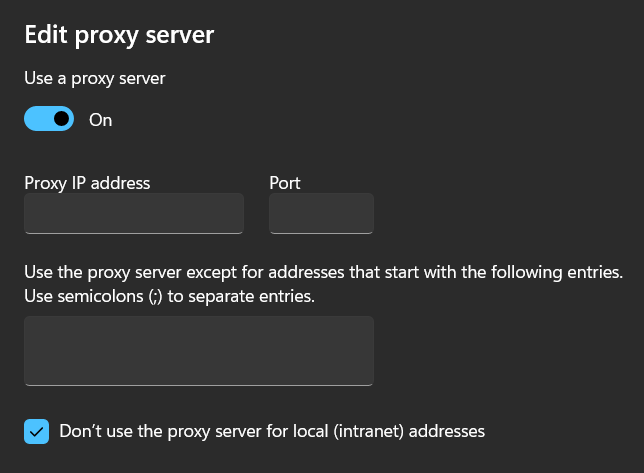
Turn on "Use a proxy server"
-
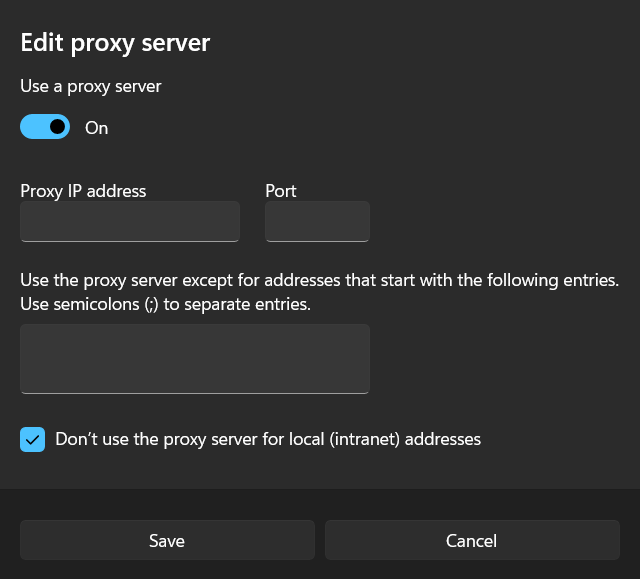
Enter the IP address and port
-
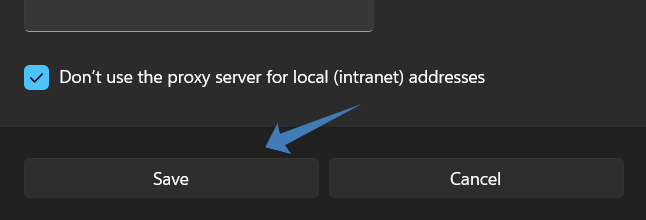
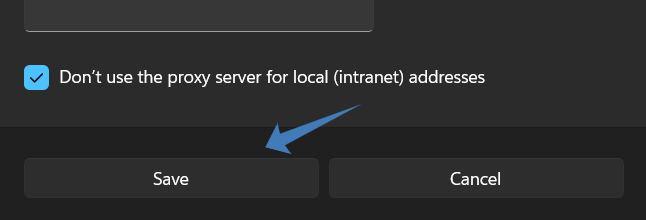
Click "Save"
Google Chrome
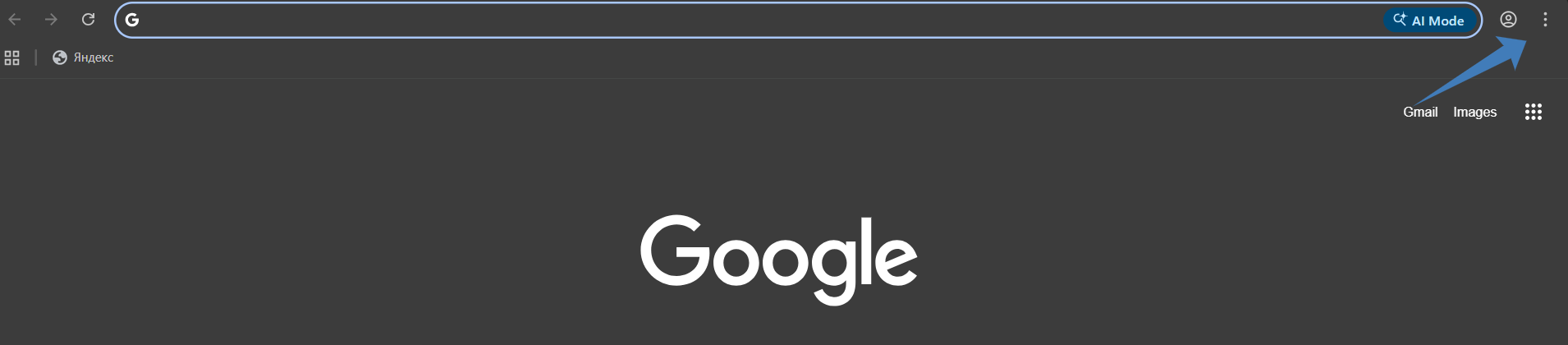
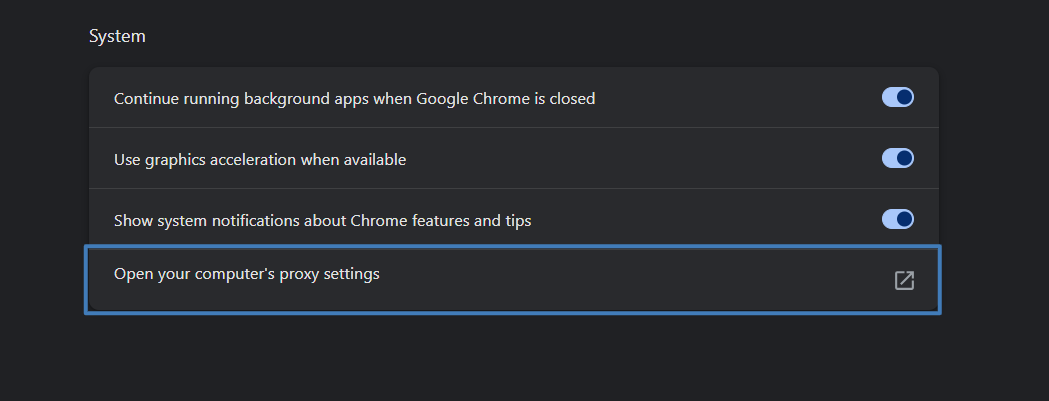
Proxy settings in Chrome are not built into the browser itself — they are taken from the operating system's system parameters. To change them:
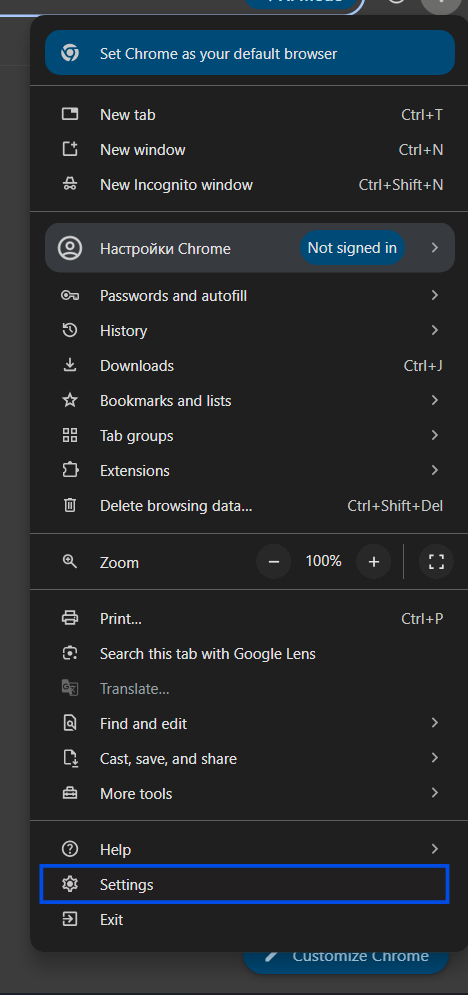
- Open Chrome "Settings" → "System" → "Open your computer's proxy settings".
- The system network settings window will open.
- Turn on "Use a proxy server", enter the IP and port.
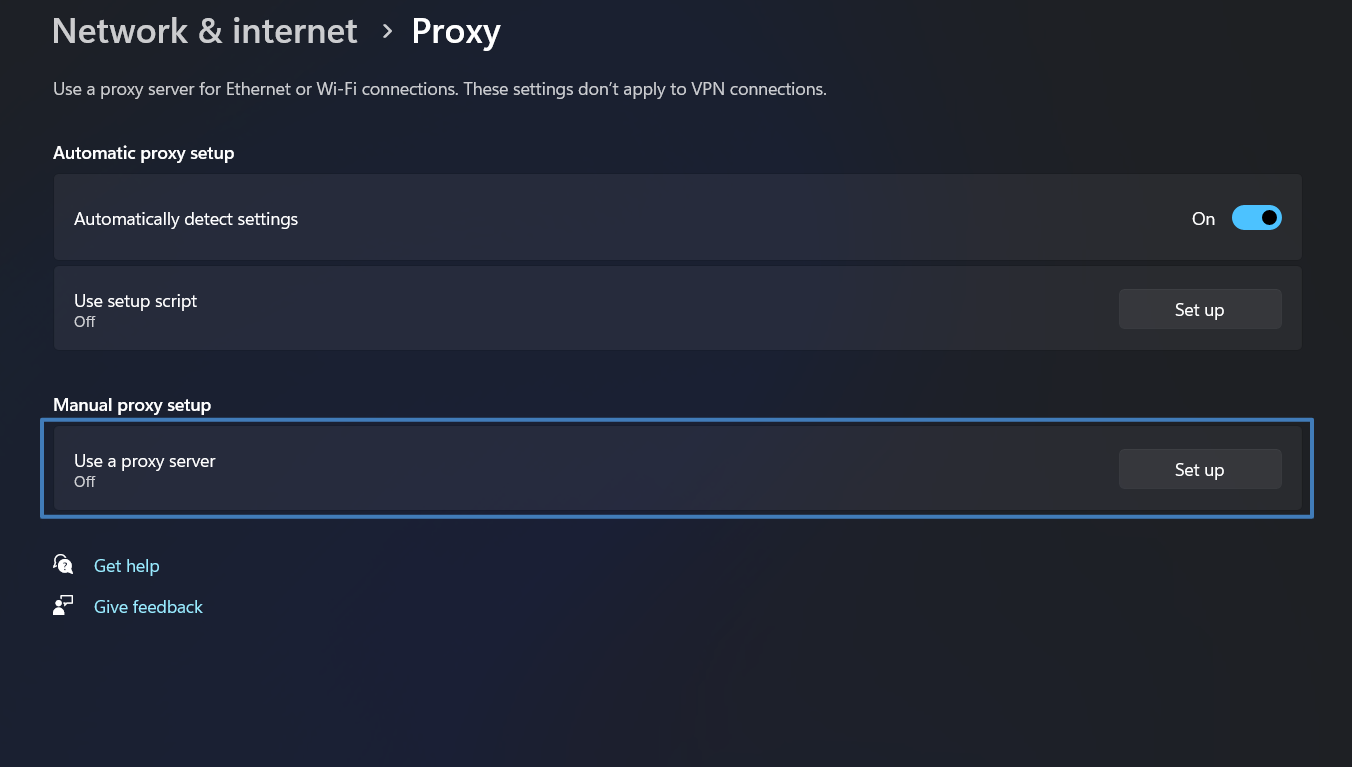
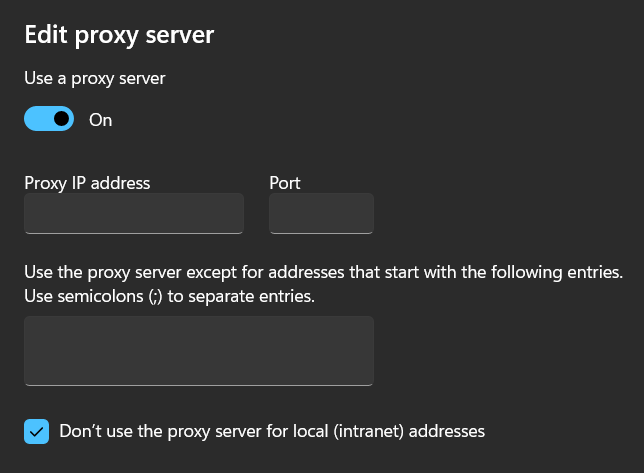
- Save the changes.
Mozilla Firefox
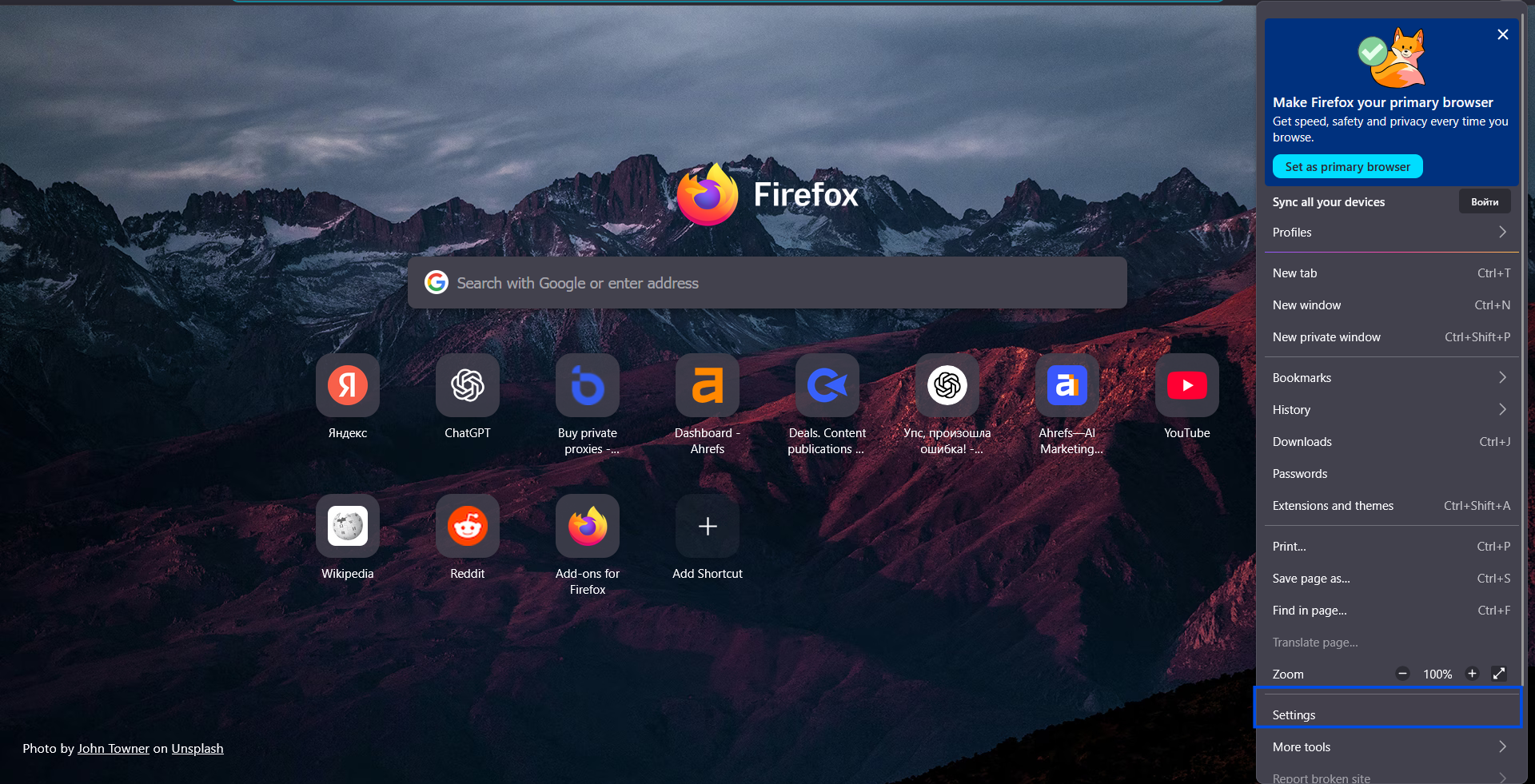
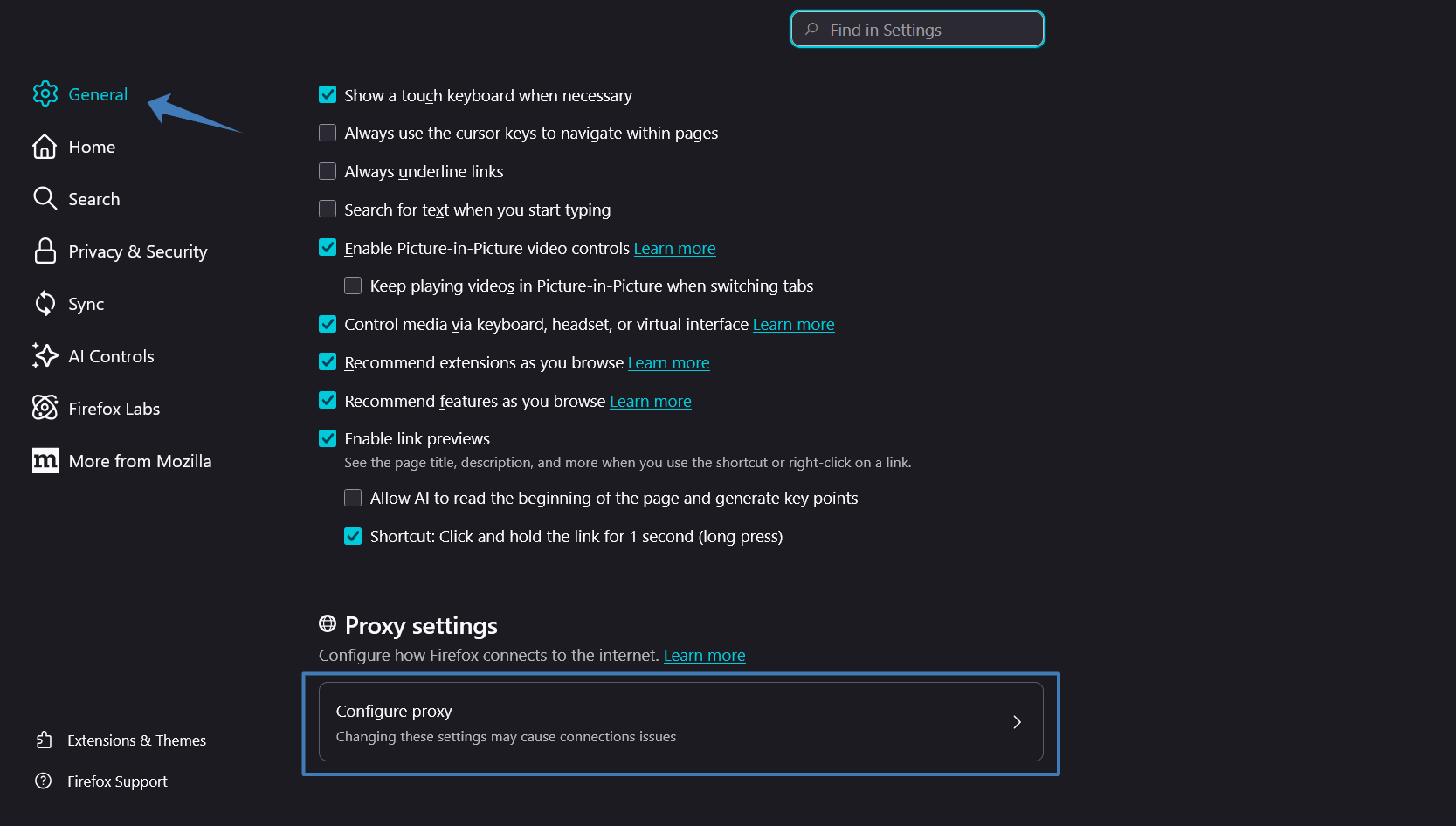
- Open "Settings" → "General" → "Network Settings" (at the bottom of the page).
-
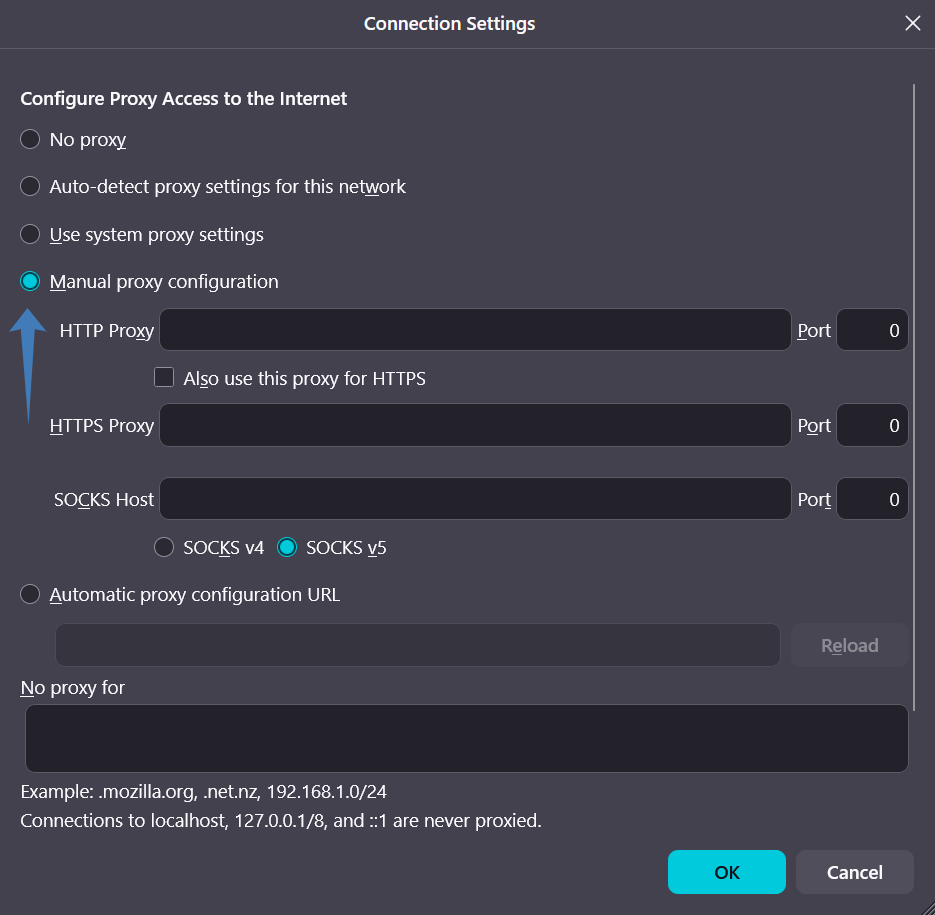
Select "Manual proxy configuration".
-
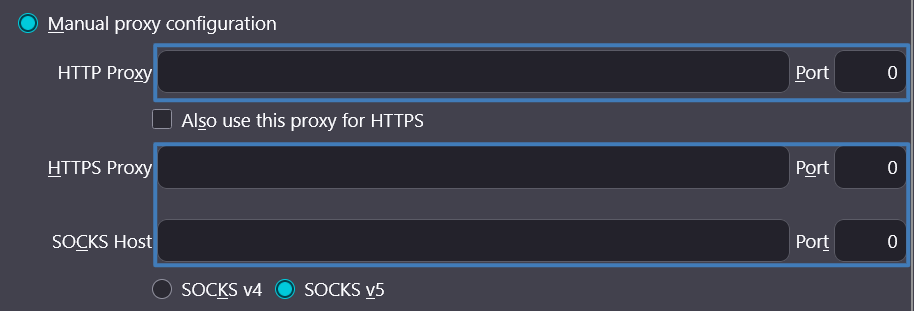
Enter the IP and port for HTTP/HTTPS or SOCKS.
-
If using SOCKS, select SOCKS5.
-
Specify the login and password if required.
-
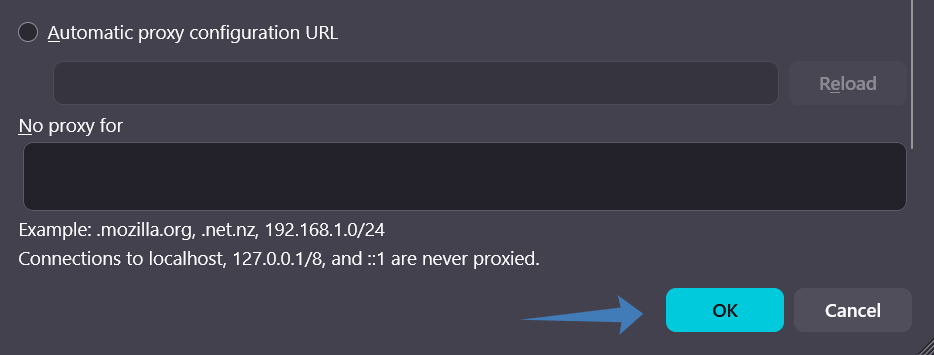
Click OK.
Microsoft Edge
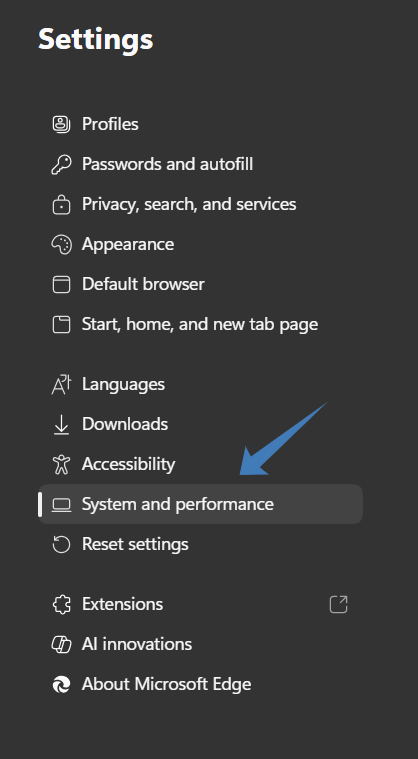
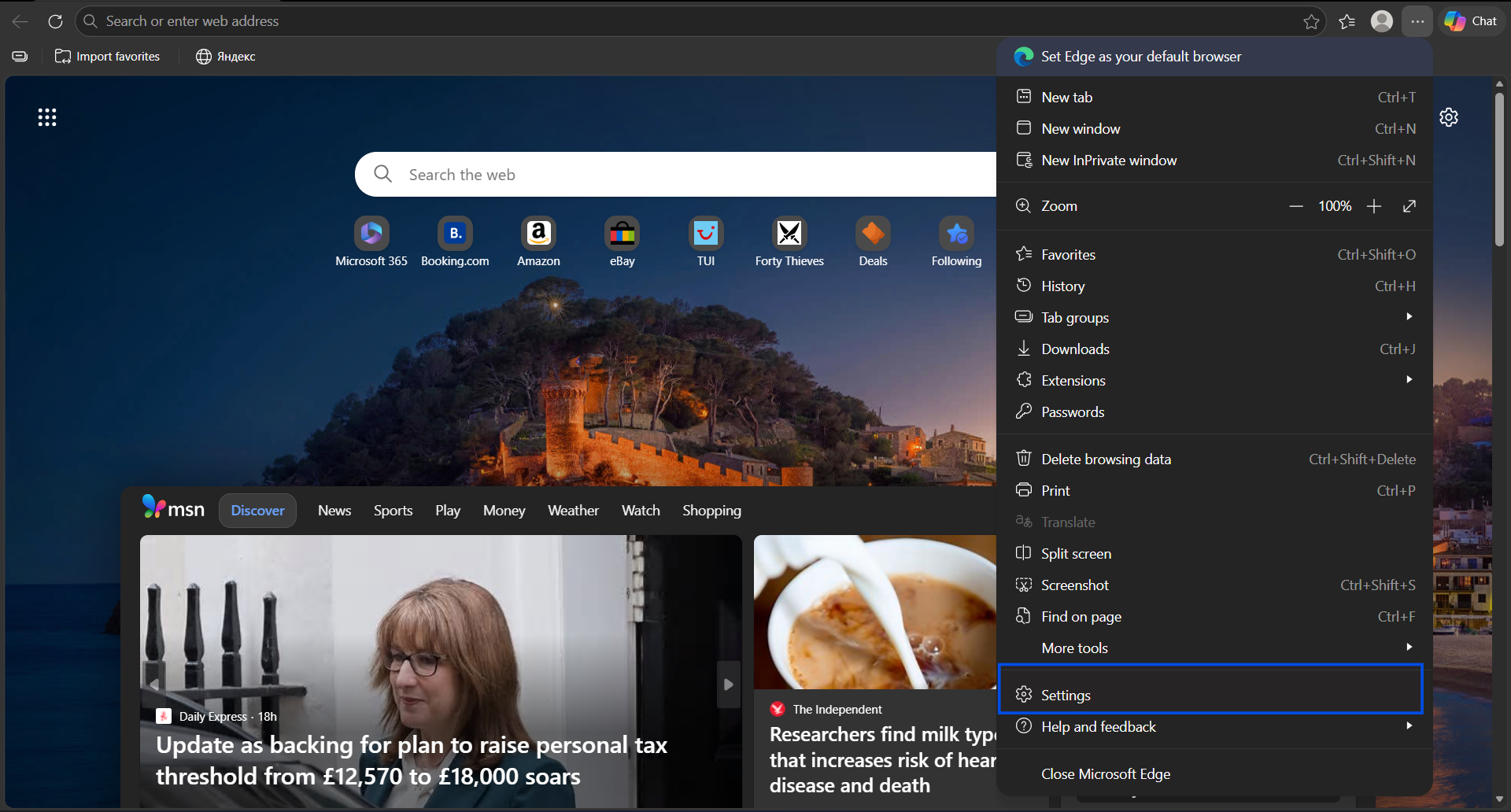
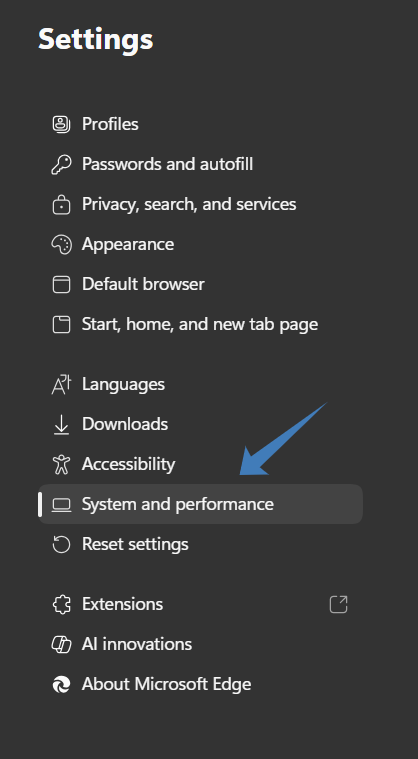
- Open "Settings and more" (three dots) → "Settings" → "System and performance".
-
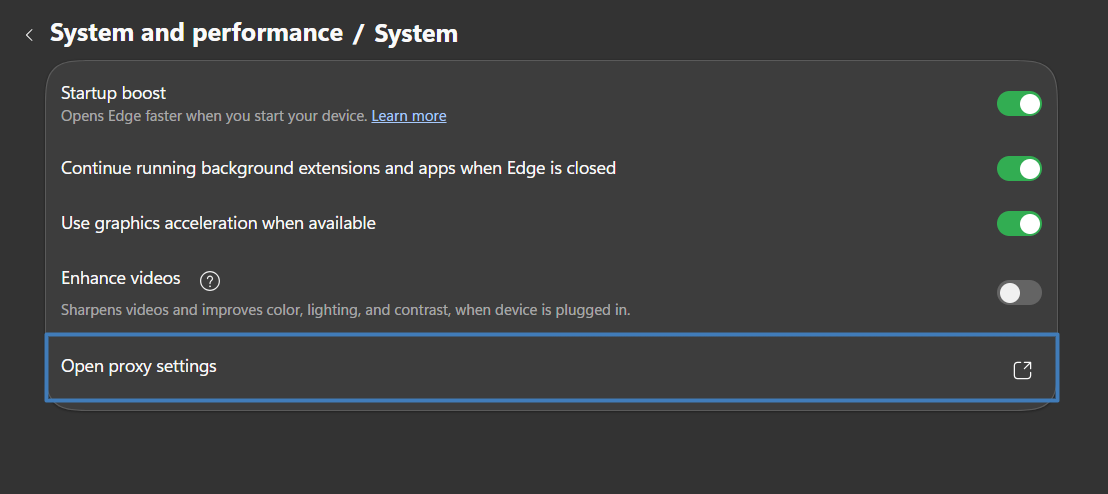
Click "Open your computer's proxy settings".
-
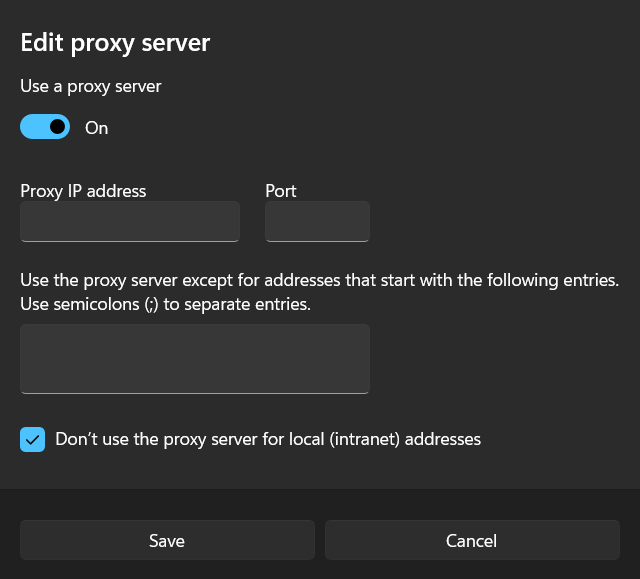
Turn on "Use a proxy server", enter the IP and port.
-
Save the changes.
Using a proxy in applications
Proxy settings in applications are usually found in sections such as: "Settings" → "Network & Internet", "Proxy server", "Connection Settings".
For programs that do not have built-in proxy settings, you can use the system parameters (configured in Windows or macOS settings).
Or third-party utilities that redirect traffic from a specific application through a proxy.
Possible problems and their solutions
Why a site might not open and what to do
There are several reasons: the proxy is not working, the data entered is incorrect, the site itself is unavailable, or the proxy requires authentication that you have not completed. First, check if the site is accessible without a proxy. If the site opens, the problem is with the proxy — try replacing it or checking the settings.
How to check the correctness of the address and port
Make sure you copied the data from your provider's dashboard without extra spaces or characters. Check that there is no confusion: the IP and port must correspond to the same proxy type (for example, if you bought SOCKS5, do not enter them in the HTTP settings).
What to do when speed drops
Slow performance may be caused by server overload, a poor connection between you and the proxy, or an overall unstable internet connection. Try switching to another proxy address from the same provider or choose a server in a different geographic location.
When to change the server
If the proxy constantly drops the connection, speed drops below acceptable levels, websites stop opening, or they require a captcha after every click — it is time to change the address. A good provider always offers the ability to replace a non-working proxy within the first 24 hours after purchase.
Conclusion
Using a proxy to access web resources is not a difficult task if you understand how it works and what settings need to be specified. Choosing the right type of proxy, a reliable provider, and correctly configuring your browser or application ensures stable operation.
Belurk provides proxies with clear instructions and qualified support so you can quickly set up a connection and not waste time solving technical problems. If difficulties arise, support helps you figure it out — from checking data to replacing the server.
Try belurk proxy right now
Buy proxies at competitive prices
Buy a proxy